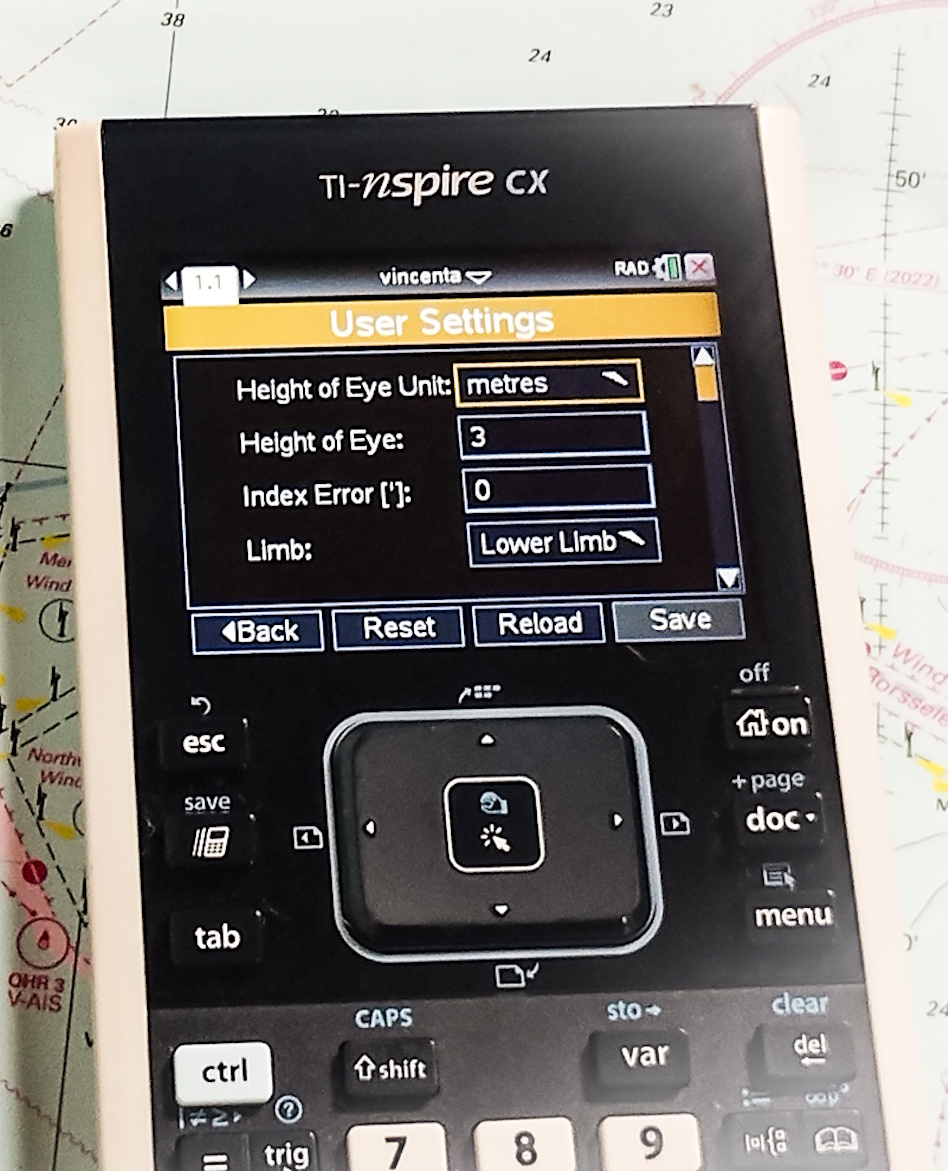
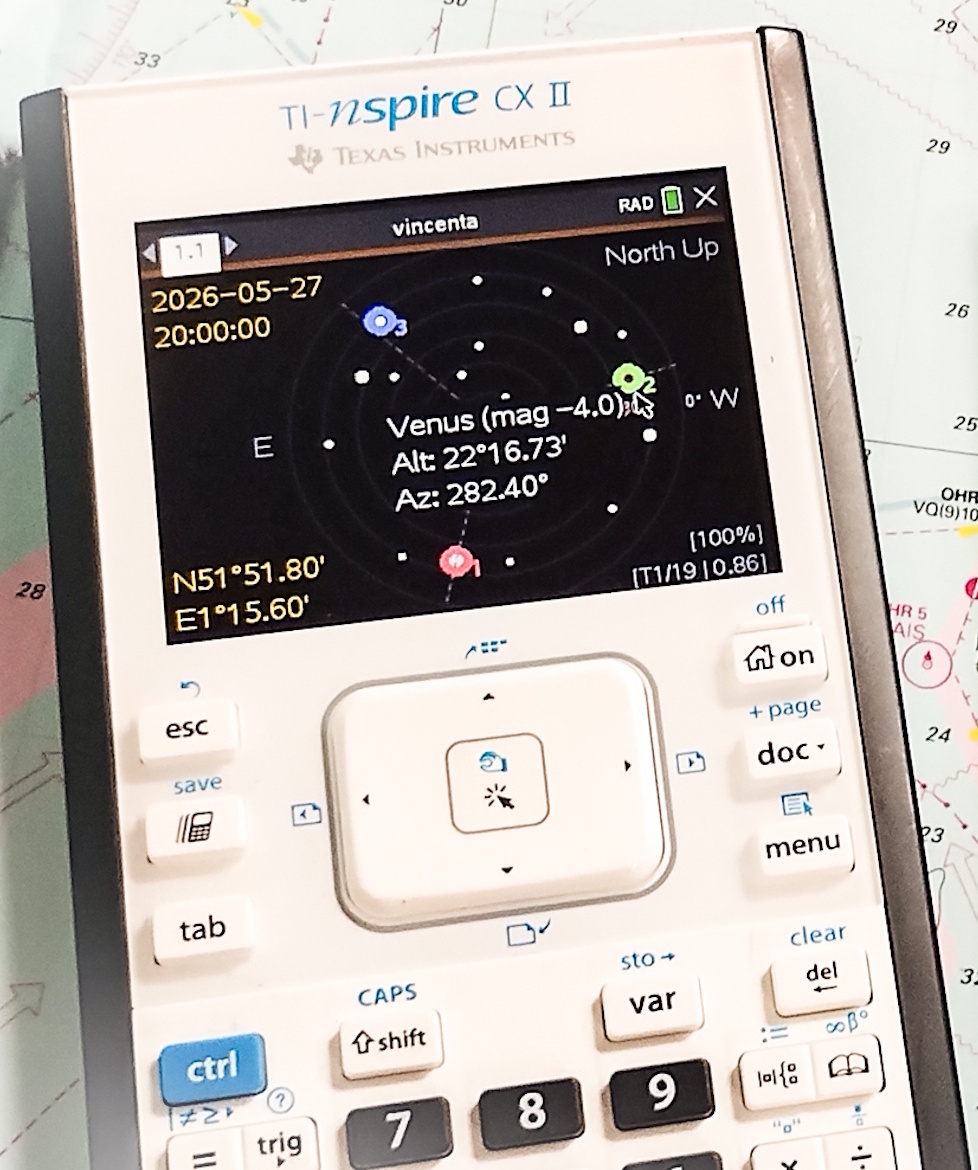
Vincenta is supplied as a standard .tns document that is copied directly to your TI-Nspire™ CX calculator. The transfer method depends on which calculator model you own.
This guide explains the correct procedure for both the original TI-Nspire™ CX and the newer TI-Nspire™ CX II models.
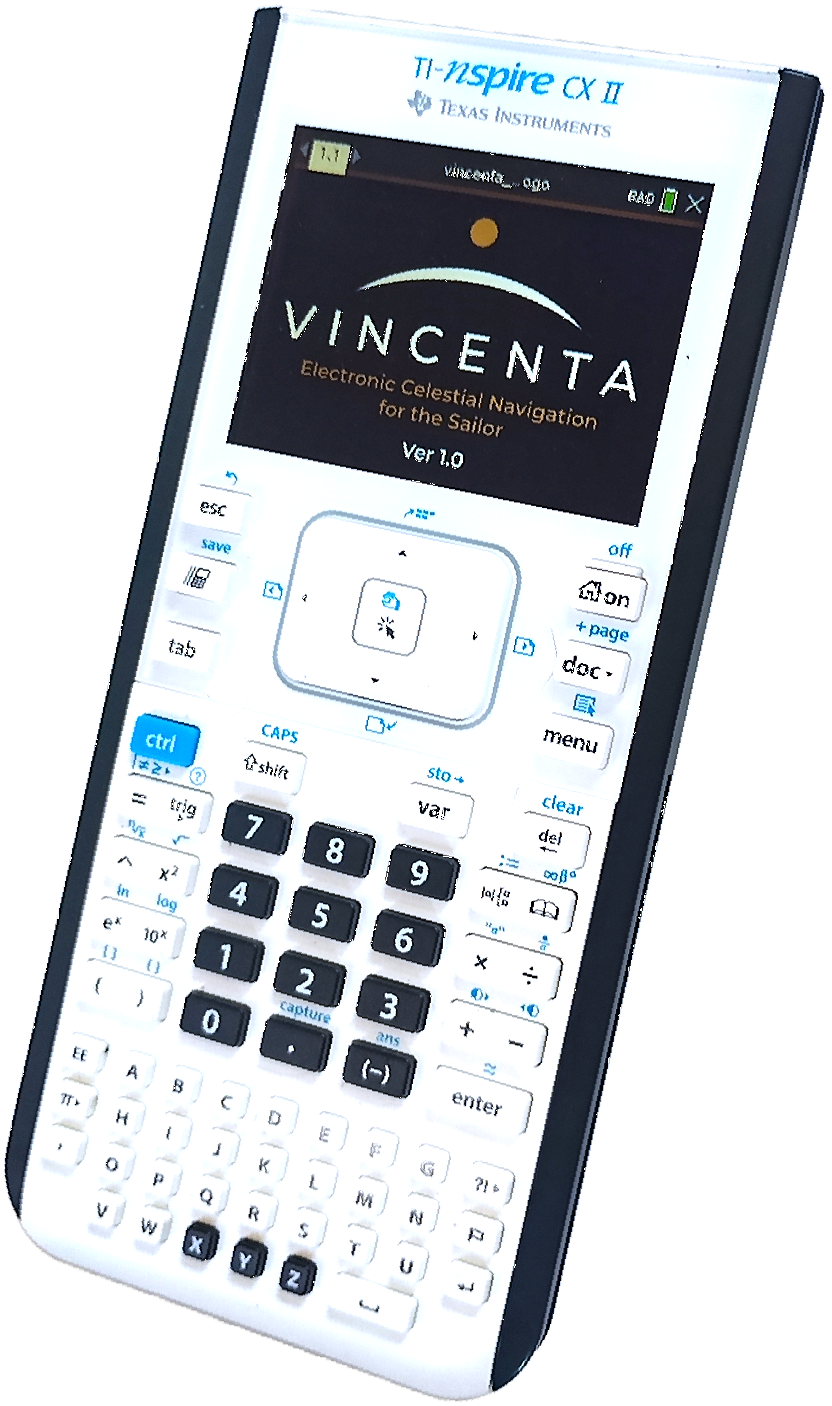
Texas Instruments currently supports two generations of TI-Nspire™ CX graphing calculator. Although Vincenta runs on both models, the method used to transfer files differs slightly.
Select the section below that matches your calculator.
Choose the transfer method appropriate for your model.
The original TI-Nspire™ CX uses TI-Nspire™ Computer Link, a free desktop application supplied by Texas Instruments.
The newer TI-Nspire™ CX II models use the browser-based TI-Nspire™ CX II Connect, which works directly in supported web browsers.
The original TI-Nspire™ CX transfers documents using TI-Nspire™ Computer Link, a free application provided by Texas Instruments.
After installing the software, simply connect your calculator using the supplied USB cable and copy the Vincenta .tns file onto the calculator.
The TI-Nspire™ CX II uses Texas Instruments' modern browser-based transfer utility, allowing documents to be copied directly from supported web browsers without installing desktop software.
Simply connect your calculator using a USB cable, open the TI-Nspire™ CX II Connect in Google Chrome or Microsoft Edge, and transfer the Vincenta .tns file to your calculator.
The overall process is straightforward regardless of which calculator model you own.
Download the latest Vincenta release from the Download Centre using your Licence Number.
Use the supplied USB cable to connect your TI-Nspire™ CX calculator to your computer.
Copy the Vincenta .tns document to the calculator using either Computer Link or the TI-Nspire™ CX II Connect.
Open the transferred document on the calculator and enter your Activation Key when prompted.
Once the transfer has completed successfully, disconnect the calculator safely and open the Documents browser.
Locate the Vincenta document, open it, and follow the on-screen instructions. The first time Vincenta starts you will be asked to enter the personalised Activation Key supplied with your licence.
Activation is normally required only once for the calculator associated with your licence.
If you experience any difficulty transferring Vincenta, installing the software, or activating your licence, we'll be pleased to help. Most installation and activation questions can be resolved quickly by email.
Will transferring Vincenta erase anything on my calculator?
No. Copying Vincenta simply adds a new document to your
calculator. Existing documents remain unchanged unless you
choose to delete them yourself.
Can I keep Vincenta together with my own calculator files?
Yes. Vincenta behaves like any other TI-Nspire™ document and
can be stored alongside your own files and folders.
Can I reinstall Vincenta later?
Yes. You may download the latest version again using your
Licence Number and reactivate it using the Activation Key
issued for your calculator.
What if I have the wrong transfer method?
Simply identify whether you own the original
TI-Nspire™ CX or the newer TI-Nspire™ CX II and follow
the appropriate instructions on this page.
Download the latest version and begin exploring electronic celestial navigation on your TI-Nspire™ CX calculator.
Go to Download CentreNeed a licence first? Purchase Vincenta